

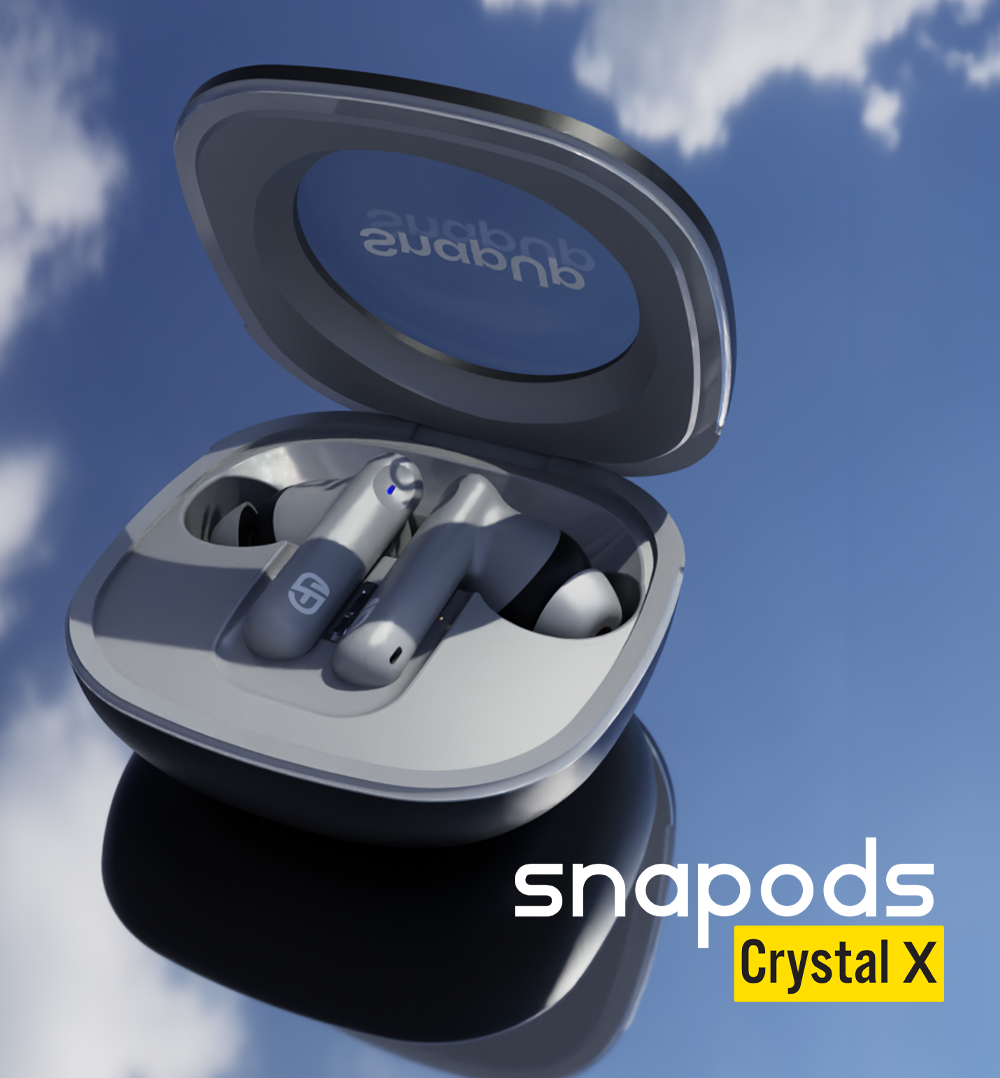
SnapUp Snapods Crystal X
Experience clear sound and convenient wireless listening with the SnapUp Snapods Crystal X Earbuds. Featuring Ultra Advance Bluetooth 6 with Snap Sync, 13mm dynamic sound drivers and dual microphones, these earbuds are designed for music, calls and everyday entertainment.
Smart touch controls make it easy to manage playback, calls, voice assistant access, Sonic Bass mode and gaming mode. With up to 10 hours of playback time, Type-C charging and a snug fit, Snapods Crystal X is built to keep up with your daily routine.

Key Features
- Bluetooth 6 with Snap Sync: Advanced wireless connectivity.
- Up to 10 Hours of Playback: Enjoy extended listening with the stated playback time.
- 13mm Dynamic Sound Drivers: Designed for clear and engaging audio.
- Crystal-Clear Calls: Dual microphones support clearer voice calls.
- Sonic Bass Mode: Switch Sonic Bass mode on or off using touch controls.
- Gaming Mode: A dedicated touch gesture lets you toggle gaming mode.
- Smart Touch Controls: Manage music, calls and other functions with simple taps.
- Voice Assistant Support: Access your device's voice assistant using the touch controls.
- Snug Fit: Designed for comfortable everyday listening.
- IP4X Dust Resistance: Dust-resistance rating as specified.
- Up to 120 Hours Standby: Extended standby time as specified.
- Type-C Charging: Convenient charging connection.
- Charging Time: Up to 2 hours.
Note: Actual playback time may vary depending on volume, usage and operating conditions.
How to Set Up Your SnapUp Snapods Crystal X Earbuds
1. Power On the Earbuds
The earbuds can power on automatically when removed from the charging case.
If manual activation is required, press and hold the earbuds' touch controls for approximately 3 seconds, as specified for the product.
2. Connect via Bluetooth
- Take the earbuds out of the charging case.
- Enable Bluetooth on your smartphone or compatible device.
- Look for the earbuds in the available Bluetooth devices list.
- Select the earbuds to establish the connection.
- Once connected, the red and blue indicator lights on the earbuds turn off, according to the supplied indicator guide.
After initial pairing, the earbuds may reconnect automatically to a previously paired device when taken out of the case, provided Bluetooth is enabled and the device is available.
3. Power Off the Earbuds
To power off the earbuds, place them inside the charging case and close the lid. They are specified to shut down automatically.
For manual shutdown, press and hold the touch controls for approximately 6 seconds to switch them off synchronously, as specified.
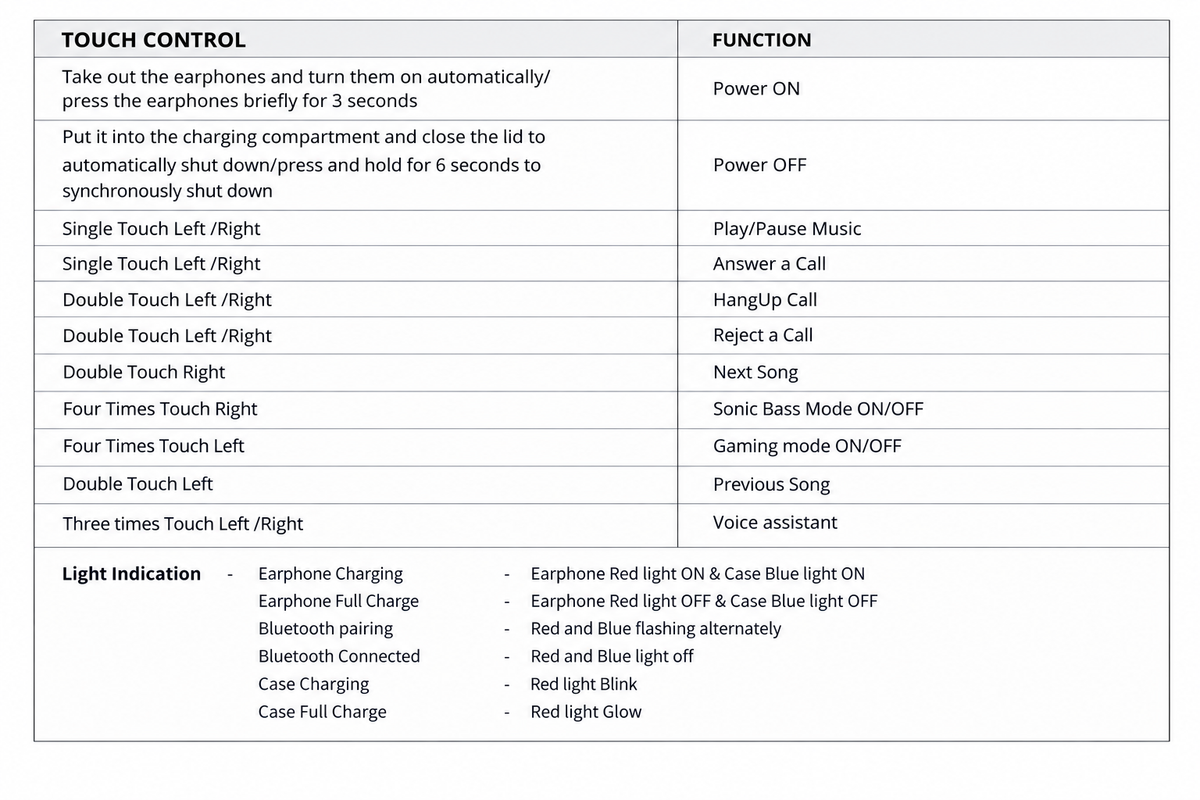
Control note: The supplied control list assigns the same gestures to multiple functions in some cases, including single-touch and double-touch actions. Confirm the exact operation on the production unit before publishing the table as a final user manual.
How to Use the Touch Controls
Music Playback
- Tap either earbud once to play or pause music.
- Double-tap the right earbud to move to the next song.
- Double-tap the left earbud to move to the previous song.
Answering and Managing Calls
- Use the specified single-touch gesture to answer an incoming call.
- Use the specified double-touch gesture to end or reject a call.
The supplied control chart assigns the same double-touch gesture to both ending and rejecting calls. Confirm the exact behaviour for the production model.
Sonic Bass Mode
Tap the right earbud four times to switch Sonic Bass mode on or off.
This mode is designed for listeners who want a bass-focused listening experience.
Gaming Mode
Tap the left earbud four times to switch Gaming Mode on or off.
Voice Assistant
Tap either the left or right earbud three times to activate the connected device's voice assistant, where supported.
Charging Your SnapUp Snapods Crystal X Earbuds
- Place the earbuds inside the charging case.
- Connect the case to a compatible power source using the Type-C charging cable.
- Check the indicator lights to monitor charging status.
- Allow the earbuds and case to charge as required.
Specified charging time: Up to 2 hours.
The supplied specifications do not separately state the charging time for the earbuds and the charging case. Confirm whether the 2-hour figure applies to the earbuds, case or both before using it in more detailed packaging or manual claims.
Troubleshooting Guide
The Earbuds Are Not Turning On
- Place both earbuds inside the charging case.
- Check that the earbuds have sufficient charge.
- Remove them from the case and allow them to power on automatically.
- If necessary, try the specified manual power-on gesture.
Bluetooth Is Not Connecting
- Ensure Bluetooth is enabled on your phone.
- Check that the earbuds are powered on and in pairing mode.
- Select the earbuds from the available Bluetooth devices list.
- If they were previously connected to another device, disconnect that device and try again.
Only One Earbud Is Working
- Place both earbuds in the charging case.
- Check that both earbuds are charging.
- Remove both earbuds together and allow them to reconnect.
- If the issue continues, disconnect the earbuds from your phone's Bluetooth settings and pair them again.
There Is No Sound
- Check the volume on your connected device.
- Confirm that the earbuds are connected to the correct device.
- Check that music or other audio is playing.
- Reconnect the earbuds if necessary.
The Touch Controls Are Not Responding
- Make sure the earbuds are powered on.
- Tap the touch-control area using the gestures specified in the control guide.
- Ensure you are using the correct number of taps for the desired function.
- If the issue persists, place the earbuds in the charging case and try again after removing them.
The Earbuds Are Not Charging
- Ensure the earbuds are correctly positioned in the charging case.
- Check the charging contacts for dirt or debris and clean them gently with a dry, soft cloth.
- Confirm that the case is charged.
- Check the LED indicators for charging status.
The Charging Case Is Not Charging
- Check that the Type-C cable is securely connected.
- Try a compatible charging cable and power source.
- Look for the blinking red indicator that signals case charging.
- If the issue persists, contact SnapUp support.
FAQs
Which Bluetooth version do Snapods Crystal X Earbuds support?
Snapods Crystal X supports Bluetooth 6 with Snap Sync.
What is the playback time?
The supplied specifications state up to 10 hours of playback. Actual time may vary depending on usage conditions.
Do the earbuds support voice assistants?
Yes. Voice assistant access is supported through the specified three-touch gesture on either earbud, subject to compatibility with the connected device.
What is Sonic Bass mode?
Sonic Bass mode is a dedicated listening mode that can be switched on or off by tapping the right earbud four times.
How do I activate Gaming Mode?
Tap the left earbud four times to switch Gaming Mode on or off.
What size are the sound drivers?
The earbuds feature 13mm dynamic sound drivers.
Do Snapods Crystal X support calls?
Yes. The earbuds feature dual microphones and support call handling through touch controls.
Are the earbuds dust-resistant?
The supplied specifications list IP4X dust resistance. This should not be interpreted as a waterproof rating.
How long does charging take?
The supplied specifications state a charging time of up to 2 hours. Confirm whether this applies to the earbuds, charging case or both before publishing a more specific claim.
What do the LED indicators mean?
Alternating red and blue lights indicate Bluetooth pairing. When connected, the earbud red and blue lights turn off. The supplied guide states that the earbud red light and case blue light glow during earbud charging, while both turn off when the earbuds are fully charged.
Is there warranty for the product? How do I claim warranty?
Yes, there is 1 year warranty on the product. To register your device, visit here.