

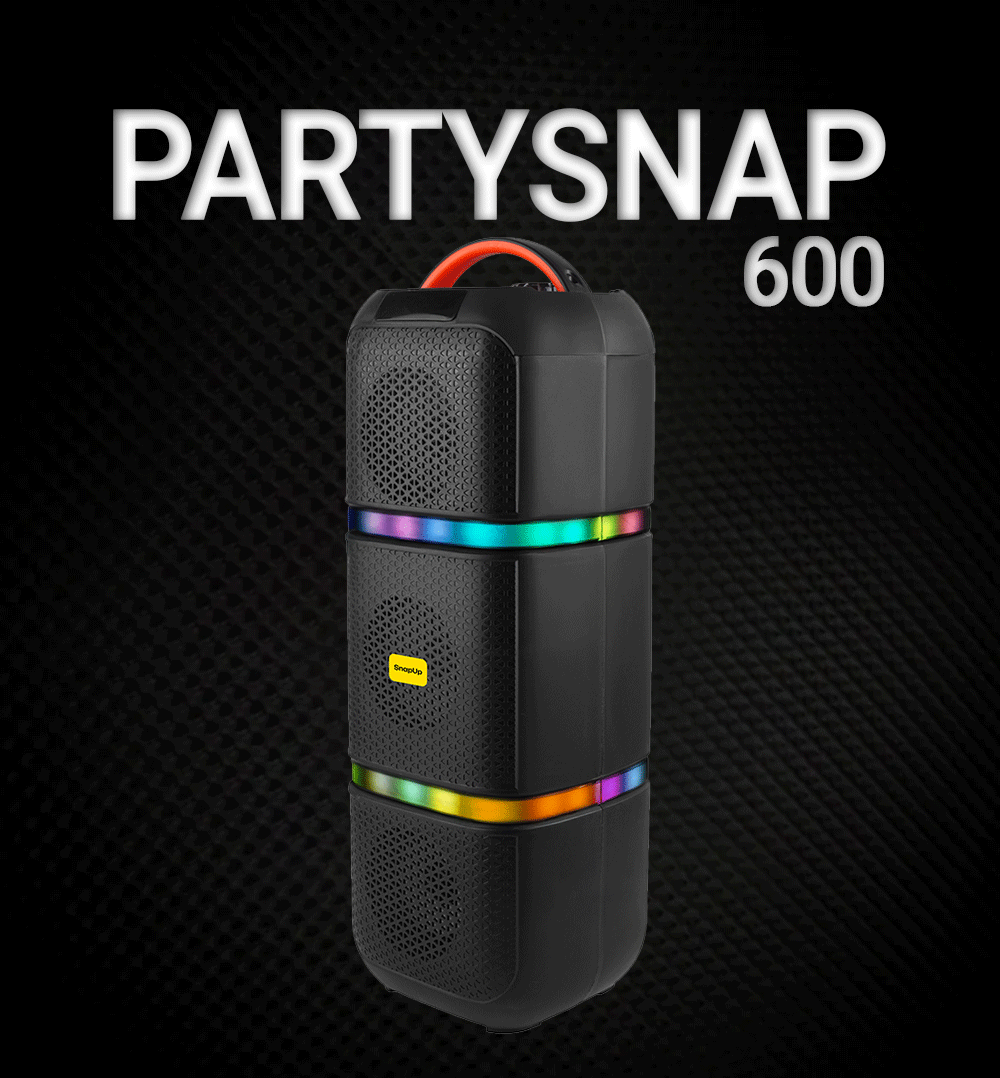
SnapUp PartySnap 600 — 72W Party Speaker
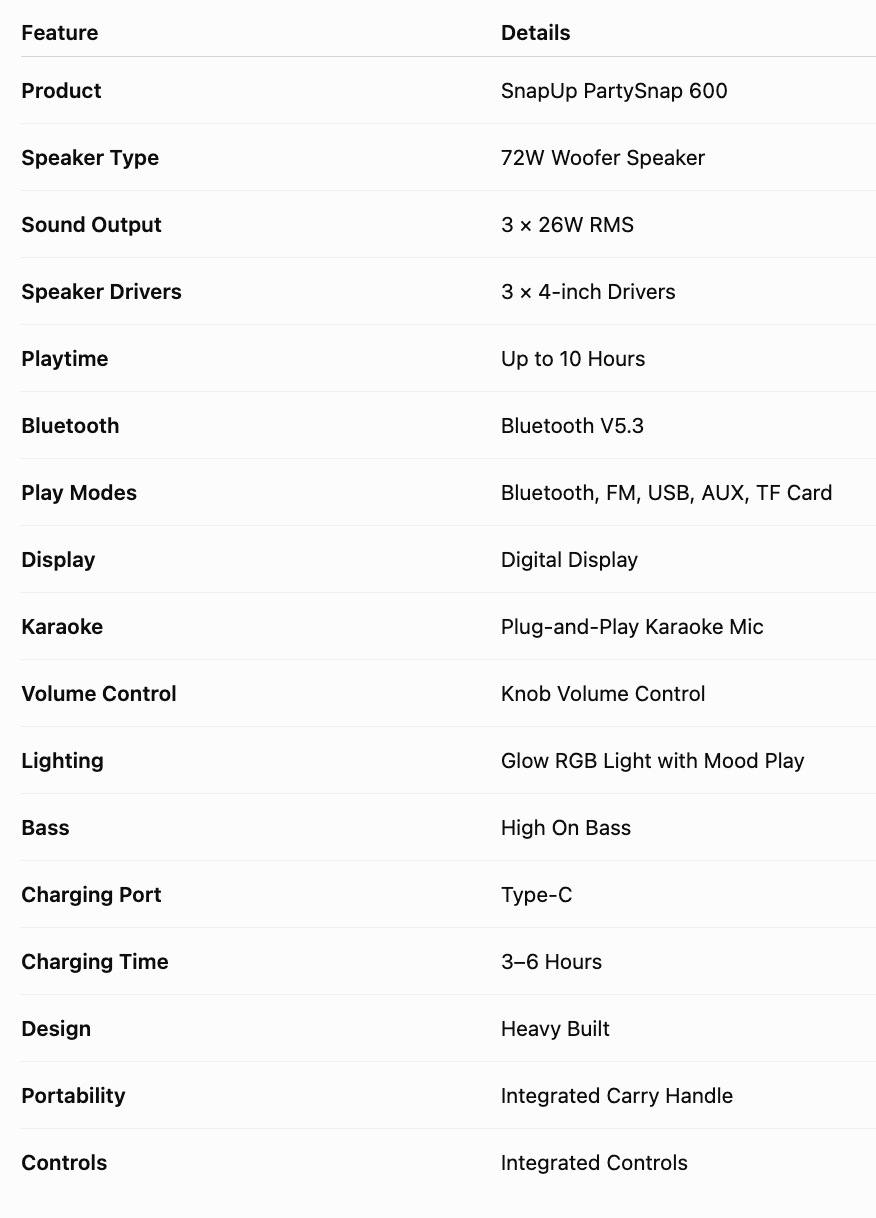
The SnapUp PartySnap 600 is a powerful 72W woofer party speaker designed to bring dynamic sound, high-impact bass and vibrant lighting to parties, gatherings and everyday entertainment. With three 4-inch speaker drivers and 3 × 26W RMS sound output, it is designed for a powerful audio experience with a strong bass response.
The PartySnap 600 delivers up to 10 hours of playtime and supports multiple playback options including Bluetooth V5.3, FM, USB, AUX and TF Card. Its digital display provides useful playback and Bluetooth status information, while integrated controls allow you to manage music, volume and modes directly from the speaker.
The speaker features Glow RGB Lights with Mood Play, allowing you to customise the lighting experience while listening to music. You can change the LED reflections or turn the LED lights off depending on your preference.
For entertainment and karaoke, the PartySnap 600 includes a plug-and-play karaoke microphone. A manual knob provides convenient volume control, while the heavy-built design and carry handle make the speaker easier to move between different spaces.
The PartySnap 600 uses a Type-C charging port and has a specified charging time of 3–6 hours.
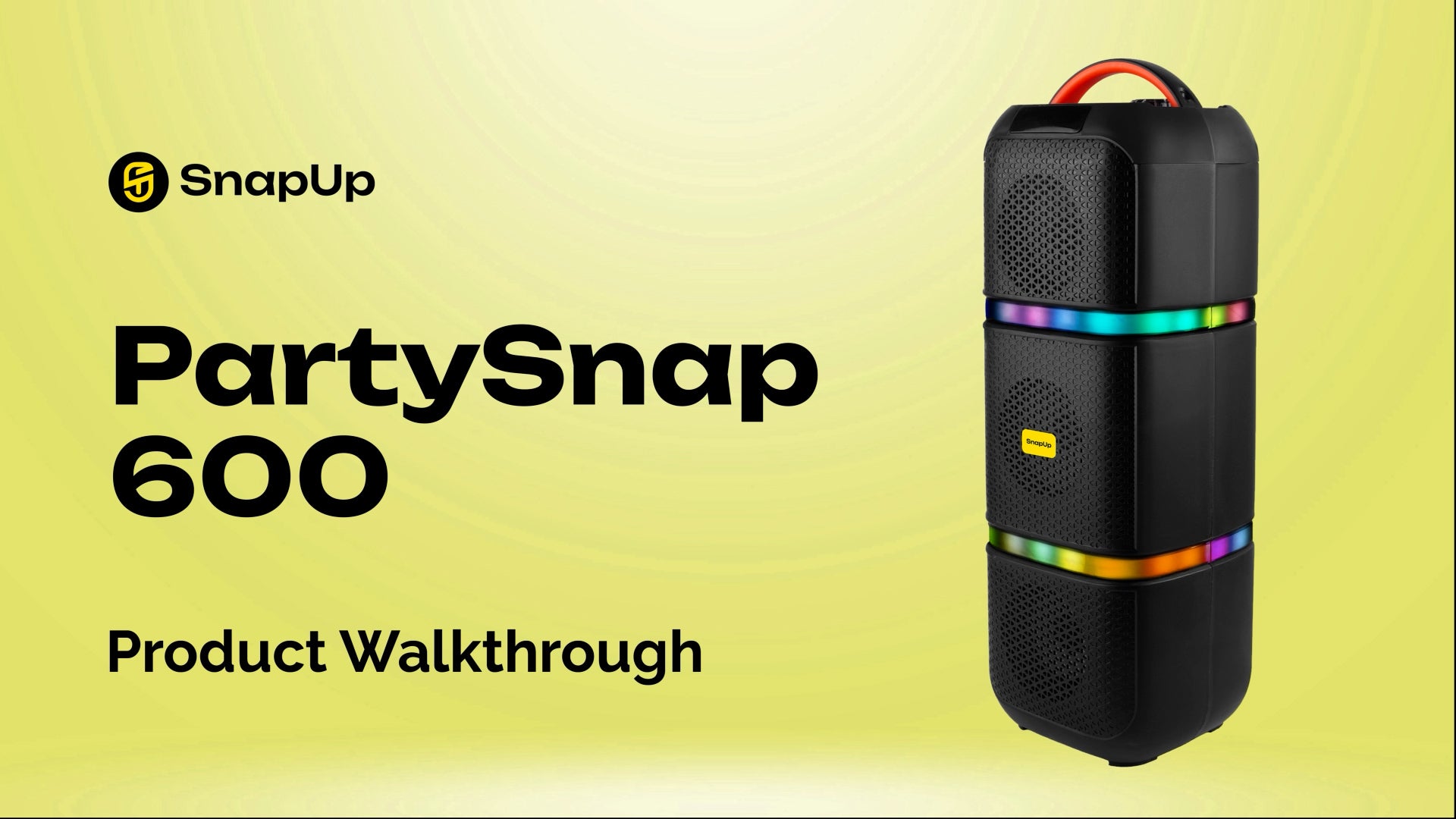
What's Included / Key Features
How to Switch the PartySnap 600 On & Off
Power On
Slide the Power button to the right to turn the PartySnap 600 ON.
Power Off
Slide the Power button to the left to turn the PartySnap 600 OFF.
Quick Guide
FunctionControlPower ONSlide button RightPower OFFSlide button Left
How to Connect PartySnap 600 via Bluetooth
The PartySnap 600 supports Bluetooth V5.3 for wireless audio playback.
Step 1: Turn On the Speaker
Slide the Power button to the right.
Step 2: Select Bluetooth Mode
Use the M/RGB button to change modes until Bluetooth mode is selected, if required.
Step 3: Check the Display
During the Bluetooth pairing process, “BT” blinks on the digital display.
Step 4: Connect Your Device
Open the Bluetooth settings on your smartphone, tablet or other compatible device and select the PartySnap speaker.
Step 5: Confirm the Connection
Once Bluetooth has connected successfully, the “BT” blinking stops on the display.
Your PartySnap 600 is now ready for wireless music playback.
Bluetooth Pairing Status
The digital display provides a simple indication of Bluetooth status.
Bluetooth StatusDisplay IndicationBluetooth Pairing“BT” blinkingBluetooth Connected“BT” blinking stops
What does blinking BT mean?
If BT is blinking, the speaker is in the Bluetooth pairing process.
When the BT blinking stops, the Bluetooth connection has been established.
How to Control Volume
The PartySnap 600 provides button-based and manual volume control.
Increase Volume
Long press the Next key to increase the volume.
You can also control the volume using the manual volume button/knob.
Decrease Volume
Long press the Previous key to decrease the volume.
The manual volume control can also be used.
Important
The Next and Previous keys have two different functions depending on how they are pressed:
- Long press → Volume control
- Single press → Track selection
How to Change Songs
The PartySnap 600 allows you to control music directly from the speaker.
Previous Track
Single press the Previous key to return to the previous track.
Next Track
Single press the Next key to move to the next track.
How to Play or Pause Music
To control music playback:
Single press the Play/Pause key.
Use this control to play or pause the currently selected audio source.
How to Change Modes on PartySnap 600
The PartySnap 600 supports multiple playback modes:
- Bluetooth
- FM
- USB
- AUX
- TF Card
To change the playback mode:
Single press the M/RGB button.
Continue pressing the button to move through the available modes.
How to Use FM Radio
The PartySnap 600 includes an FM mode, allowing you to listen to FM radio directly through the speaker.
FM Channel Search
Press the Play/Pause key for 1 second to start the FM channel search.
Change FM Channel
Use:
- Short press Next → Next FM channel
- Short press Previous → Previous FM channel
FM Quick Guide
Function | Button Control
FM Channel Search | Press Play/Pause for 1 second
Next FM Channel | Short press Next
Previous FM Channel | Short press Previous
How to Use USB, AUX & TF Card
The PartySnap 600 supports several wired and storage-based music playback options.
Bluetooth
Connect a compatible smartphone, tablet or other Bluetooth-enabled device wirelessly.
USB
Connect a compatible USB storage device for music playback.
AUX
Connect a compatible audio source using the AUX connection.
TF Card
Insert a compatible TF Card containing supported music files.
Change Playback Source
Single press the M/RGB button to change the playback mode.
How to Control the RGB Lights
The PartySnap 600 features Glow RGB Lights with Mood Play, designed to add lighting effects to your music and entertainment.
The M/RGB button controls the lighting functions.
Turn Off LED Lights
Double press the M/RGB button to turn the LED lights OFF.
Change LED Reflections
Press the M/RGB button for 1 second to change the LED reflections.
PartySnap 600 RGB Light Controls
Lighting FunctionButton ControlTurn OFF LED LightsDouble press M/RGB buttonChange LED ReflectionsPress M/RGB button for 1 second
The supplied button-control information does not specify a separate dedicated button sequence for turning the LEDs back on, so we should not publish an unverified sequence.
How to Charge PartySnap 600
The PartySnap 600 comes with a Type-C charging port.
During Charging
Connect the speaker to a suitable power source using the Type-C charging connection.
The red charging light glows while the speaker is charging.
When Fully Charged
The red charging light turns OFF when the speaker reaches full charge.
Charging Time
The specified charging time is:
3–6 Hours
Playtime
The PartySnap 600 offers:
Up to 10 Hours Playtime
Actual battery performance may vary depending on volume, RGB lighting and playback conditions.
PartySnap 600 Charging Indicators
Speaker StatusIndicatorSpeaker ChargingRed light glowsSpeaker Fully ChargedRed light turns OFF
How to Use the Karaoke Microphone
The PartySnap 600 features a plug-and-play karaoke microphone, making it suitable for karaoke sessions, parties, family gatherings and entertainment.
Basic Use
- Turn on the PartySnap 600.
- Connect/use the karaoke microphone as intended.
- Start your music or karaoke track.
- Adjust the speaker volume using the manual control or speaker buttons.
- Start singing and enjoy the karaoke experience.
The supplied product specifications confirm the microphone is plug-and-play. Specific microphone echo, independent microphone-volume or vocal-effect controls have not been provided, so those functions should not be stated unless confirmed in the final product manual.
72W Sound & High-Bass Performance
The PartySnap 600 is built around a 72W woofer speaker configuration, with three 4-inch speaker drivers and 3 × 26W RMS sound output.
The speaker is designed for a powerful audio experience with high-on-bass performance, making it suitable for music genres and entertainment where strong low-frequency sound is preferred.
Its combination of multiple drivers and high-power output makes the PartySnap 600 suitable for:
- House parties
- Family gatherings
- Music listening
- Karaoke
- Indoor entertainment
- Social gatherings
Up to 10 Hours of Playtime
The PartySnap 600 provides up to 10 hours of playtime, making it suitable for extended listening sessions and parties.
Actual battery performance can vary depending on factors such as:
- Volume level
- RGB lighting usage
- Playback mode
- Connected devices
- Usage conditions
For longer playback, you can turn off the RGB lights using the double-press M/RGB control.
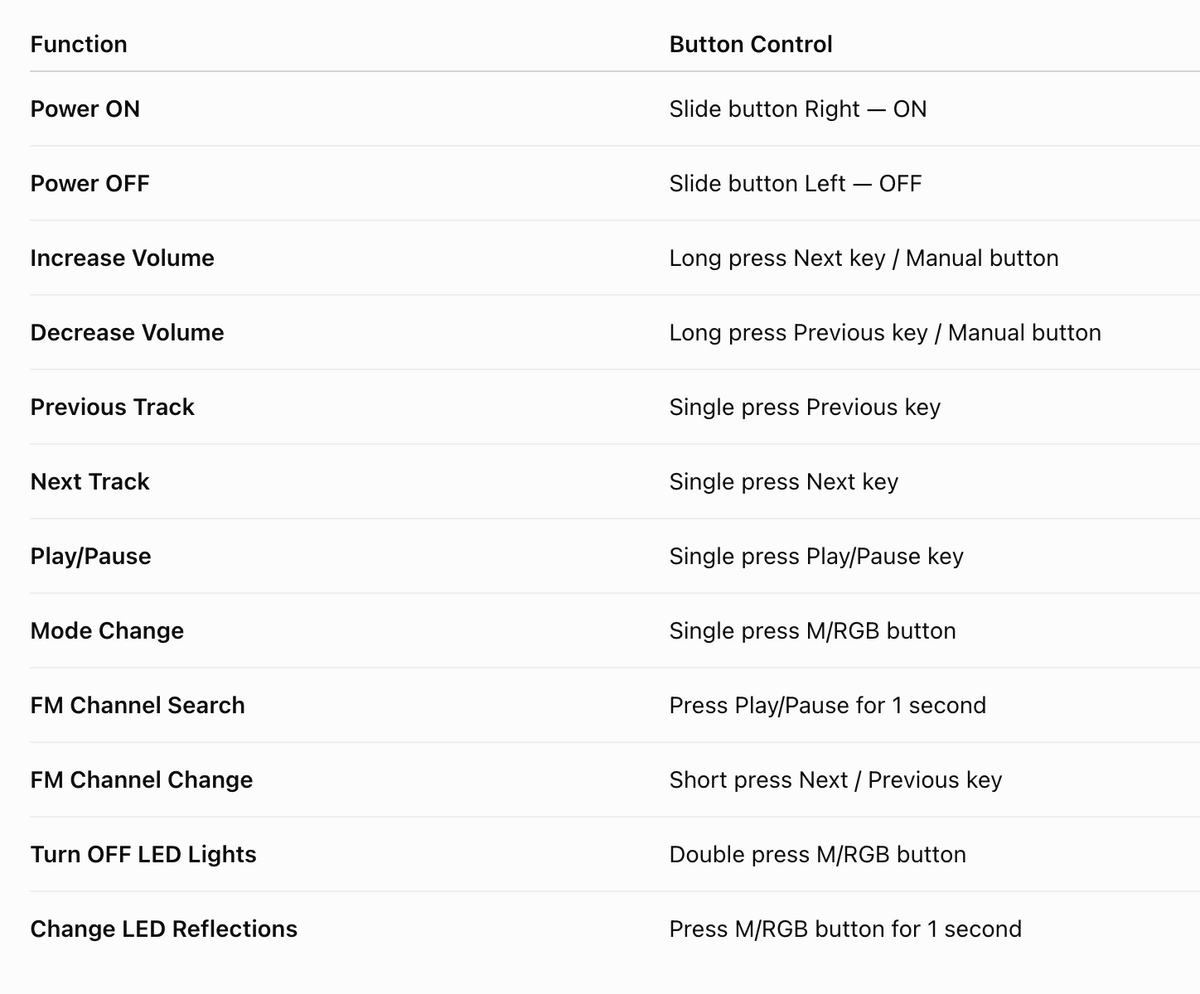
Complete PartySnap 600 Button Control Guide
Useful Tips for Better PartySnap 600 Experience
- Charge the speaker fully before extended use.
- Use Bluetooth V5.3 for convenient wireless music playback.
- Keep your Bluetooth device within a suitable operating range.
- Use the M/RGB button to switch between available playback modes.
- Use the digital display to check Bluetooth pairing status.
- Use the manual volume control for convenient volume adjustment.
- Use the RGB controls to customise the party lighting.
- Turn the RGB lights off when you want to reduce lighting during playback.
- Use the carry handle when moving the speaker.
- Keep the Type-C charging port clean and dry.
- Avoid exposing the speaker to liquids.
- Disconnect the speaker from charging after it is fully charged.
Cleaning & Maintenance
How to clean the PartySnap 600?
- Switch off the speaker before cleaning.
- Disconnect the charging cable.
- Use a soft, dry or slightly damp cloth to clean the exterior.
- Do not spray liquid directly onto the speaker.
- Keep the Type-C charging port dry.
- Do not use abrasive cleaning materials.
- Keep the speaker in a clean and dry place when not in use.
Important
The PartySnap 600 is an electronic audio device. Do not immerse the speaker in water or expose the charging port and electronic components to liquids.
FAQs
How do I turn ON/OFF the SnapUp PartySnap 600?
Slide the Power button to the right to turn the PartySnap 600 ON.
Slide the Power button to the left to turn the speaker OFF.
How do I connect my phone to the PartySnap 600?
Turn on the speaker and select Bluetooth mode. During Bluetooth pairing, “BT” blinks on the digital display. Open Bluetooth settings on your phone and select the PartySnap speaker. Once connected, the BT blinking stops.
Does the PartySnap 600 support Bluetooth 5.3?
Yes. The PartySnap 600 supports Bluetooth V5.3.
What does BT blinking mean on the PartySnap 600?
A blinking “BT” on the digital display indicates the Bluetooth pairing process. When the Bluetooth connection is established, the BT blinking stops.
How do I increase the volume on PartySnap 600? How do I decrease the volume?
Long press the Next key to increase the volume. You can also use the manual volume control.
Long press the Previous key to decrease the volume. The manual volume control can also be used.
How do I change songs on PartySnap 600?
Single press Previous to go to the previous track and single press Next to move to the next track.
How do I play or pause music?
Single press the Play/Pause key.
How do I change modes on PartySnap 600?
Single press the M/RGB button to change between Bluetooth, FM, USB, AUX and TF Card modes.
How do I use FM radio on PartySnap 600?
Select FM mode and press the Play/Pause key for 1 second to search for FM channels. Use short presses of Next or Previous to change channels.
Does PartySnap 600 have RGB lights?
Yes. The PartySnap 600 features Glow RGB Lights with Mood Play.
How do I turn off the RGB lights on PartySnap 600?
Double press the M/RGB button to turn the LED lights OFF.
How do I change the RGB light reflections?
Press the M/RGB button for 1 second to change the LED reflections.
How long does the PartySnap 600 play on a full charge?
The PartySnap 600 provides up to 10 hours of playtime. Actual battery life can vary according to volume, lighting and usage conditions.
How long does PartySnap 600 take to charge?
he specified charging time is 3–6 hours.
How do I know when PartySnap 600 is charging? How do I know when PartySnap 600 is fully charged?
The red charging light glows while the speaker is charging.
The red charging light turns OFF when the speaker is fully charged.
Does PartySnap 600 come with a karaoke microphone?
Yes. It features a plug-and-play karaoke microphone for karaoke and entertainment.
How powerful is the PartySnap 600?
The PartySnap 600 is a 72W woofer speaker featuring three 4-inch speaker drivers and 3 × 26W RMS sound output.
What playback modes does PartySnap 600 support?
The speaker supports Bluetooth V5.3, FM, USB, AUX and TF Card playback.
Can I use PartySnap 600 without Bluetooth?
Yes. The PartySnap 600 supports FM, USB, AUX and TF Card playback in addition to Bluetooth.
Can I turn off the RGB lights while playing music?
Yes. You can double press the M/RGB button to turn off the LED lights while continuing audio playback.
Does the PartySnap 600 come with Warranty?
Yes, PartySnap 600 comes with 1 Year Warranty. To register your device, visit here.